Auto-Connect Pipes to Equipment
Reconnects open Fabrication pipe ends to the pipe connectors on equipment families, such as fan coil units and valve sets. Where the pipe is already touching, it just re-bonds the connection. Where there's a small gap or overlap, it stretches or shrinks the pipe to fit, then connects it.
Why this tool exists
On live jobs, connections between Fabrication pipework and equipment families have been found to break at random, typically when a model is opened from the cloud or synchronised. The cause has never been pinned down. This tool finds and repairs those broken connections in one go, instead of checking every one by hand.
At a glance
| Runs in | Revit 2024 |
| Ribbon | Integra Tools tab → Fabrication Tools panel → Auto-Connect Pipes to Equip   |
| Works on | Open, round Fabrication pipe ends, and the round pipe connectors on any family |
| Searches | The active view, or elements you select |
| Changes | Connects pipes to equipment, and may lengthen or shorten a Fabrication straight to fit |
Step by step
- Open a view showing the pipework and equipment to check.
- On the Integra Tools tab, in the Fabrication Tools panel, click Auto-Connect Pipes to Equip.
-
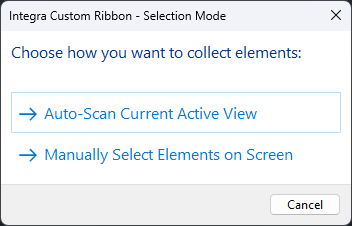
Choose how to find the elements:
- Auto-Scan Current Active View: checks everything visible in the view.
- Manually Select Elements on Screen: window-select the pipework and equipment, then click Finish on the Options Bar. Only Fabrication pipework and families with pipe connectors can be selected.
-
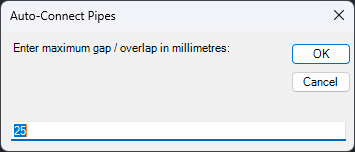
Enter the maximum gap or overlap to fix, in mm, and click OK. The default is 25.
-
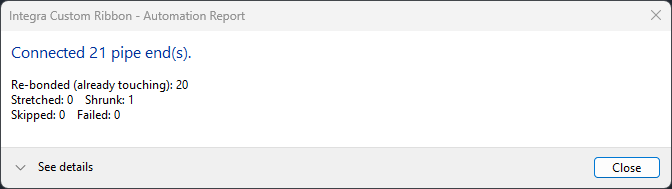
The Automation Report shows what was done. Click See details for the full list, then Close.
One undo step
The whole run is a single undo step, so Ctrl+Z reverses everything it did.
How it decides what to connect
A pipe end and an equipment connector are matched only if:
- They're the same size, within 0.5 mm.
- They're in line: no more than 1 mm off-centre, and pointing directly at each other.
- The gap or overlap is no more than the value you entered.
The closest, best-aligned matches are dealt with first, and each pipe end and connector is only used once.
What happens next depends on the gap:
| Situation | What it does |
|---|---|
| Touching (within 1 mm) | Re-bonds the connection. Nothing moves. |
| A gap | Stretches the Fabrication straight to close the gap, then connects it. |
| An overlap | Shrinks the Fabrication straight to remove the overlap, then connects it. |
Reading the report
The summary shows how many ends were connected, and how many were re-bonded, stretched, shrunk, skipped or failed. Click See details for the full report:
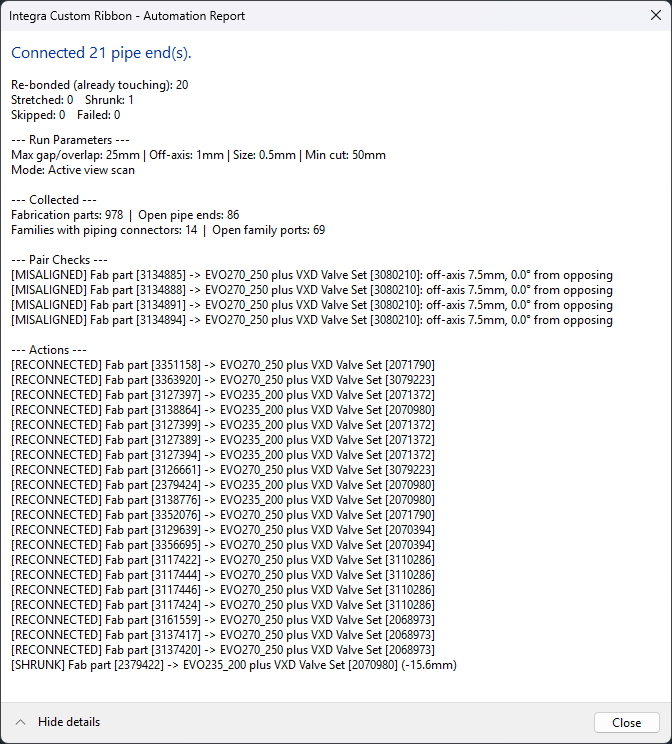
- Run Parameters: the limits used for this run.
- Collected: how many Fabrication parts, open pipe ends, families and open family connectors were found.
- Pair Checks: near-matches that were not connected, and why:
- [MISALIGNED]: the pipe is off-centre or at an angle to the connector. The tool won't move pipes sideways, so fix these by hand.
- [SIZE MISMATCH]: the pipe and connector are different sizes.
- Actions: every pair it dealt with, with the outcome. Each element is shown with its ID, for Manage → Select by ID.
Why a pair might be skipped
| Message | What to do |
|---|---|
| owned by another user | Ask them to sync and relinquish, then run again. |
| has newer changes in central - Reload Latest first | Click Reload Latest, then run again. |
| the part is not a straight, so it can't be stretched | The pipe end is on a fitting, which can't change length. Connect it manually. |
| other end of this straight was adjusted this run - run again | Both ends of one straight needed changing. Run the tool again to fix the second end. |
| would leave …mm, below 50mm minimum | Shrinking would make the straight too short. Rework the pipe manually. |
A Failed pair means Revit wouldn't accept the change, so it was undone and left as it was. The reason is shown in the details.
Tip
Run this after opening a model from the cloud or synchronising, especially before issuing drawings or exporting to Navisworks, so broken connections don't slip through.