Multi Service Tagging
Places one tag for a run of parallel services. Click one service and the tool finds the others running alongside it, or you can pick them yourself.
At a glance
| Runs in | Revit 2024 |
| Ribbon | Integra Tools tab → Tagging Tools panel → Multi Service Tagging   |
| Tags | Fabrication ductwork, pipework and containment |
| Starts from | The settings you last applied in Multi Service Tag Settings |
Step by step
- Open the view to tag in.
- On the Integra Tools tab, in the Tagging Tools panel, click Multi Service Tagging.
-
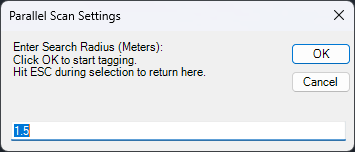
Enter the search radius in metres (the default is 1.5) and click OK. Services within this distance of where you click, and running parallel to it, are picked up.
-
Click one service in the run, where all the services are side by side. Revit's prompt calls this the master part, but it's only the centre of the search: every service found is treated the same, and the order in the tag comes from their positions across the run, not from which one you clicked. The new tag starts next to it.
-
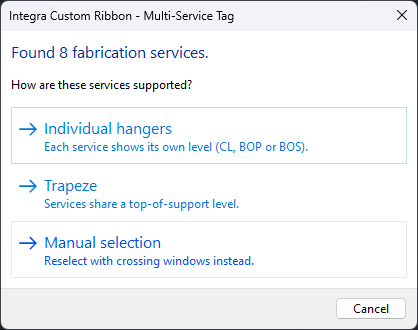
The services found are highlighted, and you're asked how they're supported:
- Individual hangers: each service shows its own level.
- Trapeze: services share a top-of-support level.
- Manual selection: if the services picked up aren't right, choose this to select them yourself (see below).
-
The tag is placed up and to the right of the service you clicked. Move it to where you want it.
- Click the next run to tag, or press Esc to go back to the search radius. Press Esc again, or Cancel, to finish.
Each tag is its own undo step.
Selecting the services yourself
If you choose Manual selection:
- Drag a window over the services to keep.
- Drag more windows to add services. They're highlighted as you go.
- Press Esc when you've finished.
- Choose Individual hangers or Trapeze.
Only Fabrication ductwork, pipework and containment are picked up, so it's fine for a window to catch other elements.
Getting the run right
The search finds services that are parallel to the one you click and pass that point, within the radius. Click where the run is straight and all the services are side by side. A smaller radius helps in busy areas where a neighbouring run might be picked up by mistake.
After placing
- The services are listed in order across the run, with a header showing which way it reads. To read the other way, use Reverse order in Multi Service Tag Settings.
- To change the layout, levels, support or width, select the tag and use Multi Service Tag Settings.
- To remove a service from a tag, use Revit's Add/Remove Host and click the service to remove it. The text updates automatically.
- To add a service, delete the tag and place it again with Multi Service Tagging, using Manual selection if the search doesn't pick it up.
Don't add services with Add/Remove Host
Adding a service with Revit's own Add/Remove Host can make the tag read <varies> instead of listing the services. Only use it to remove services.