RVTFC: AutoCAD plugin
The AutoCAD plugin opens the Revit View Template & Filter Compiler. Use it to decide which Fabrication services appear in each standard view template, to manage filters for native Revit categories, and to save everything to the master Excel file that the Revit add-in reads.
At a glance
| Runs in | AutoCAD 2024 with Fabrication 2024 |
| Start it | The RVTFC button on the Integra AutoCAD Tools tool palette, or type RVTFC |
| Loads | Automatically when AutoCAD starts |
| Reads | The Fabrication database (all services) |
| Saves to | X:\Revit Libraries\RevitViewTemplateAndFilterData.xlsx |
Use AutoCAD 2024, not 2027
Our Revit projects are on Revit 2024, so RVTFC must be run in AutoCAD 2024 and Fabrication 2024 to match. Carry on using AutoCAD 2027 for general CAD work.
When we move to Revit 2025, RVTFC will move to the matching AutoCAD and Fabrication versions and this guide will be updated.
Step by step
- Launch AutoCAD from the Fabrication 2024 Database Access shortcut. This opens AutoCAD 2024 with Fabrication running and the Revit Fabrication Database already loaded.
-
Click RVTFC on the Integra AutoCAD Tools tool palette (press Ctrl+3 if the palettes aren't showing), or type
RVTFCand press Enter.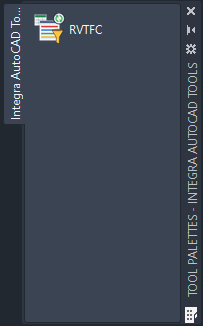
-
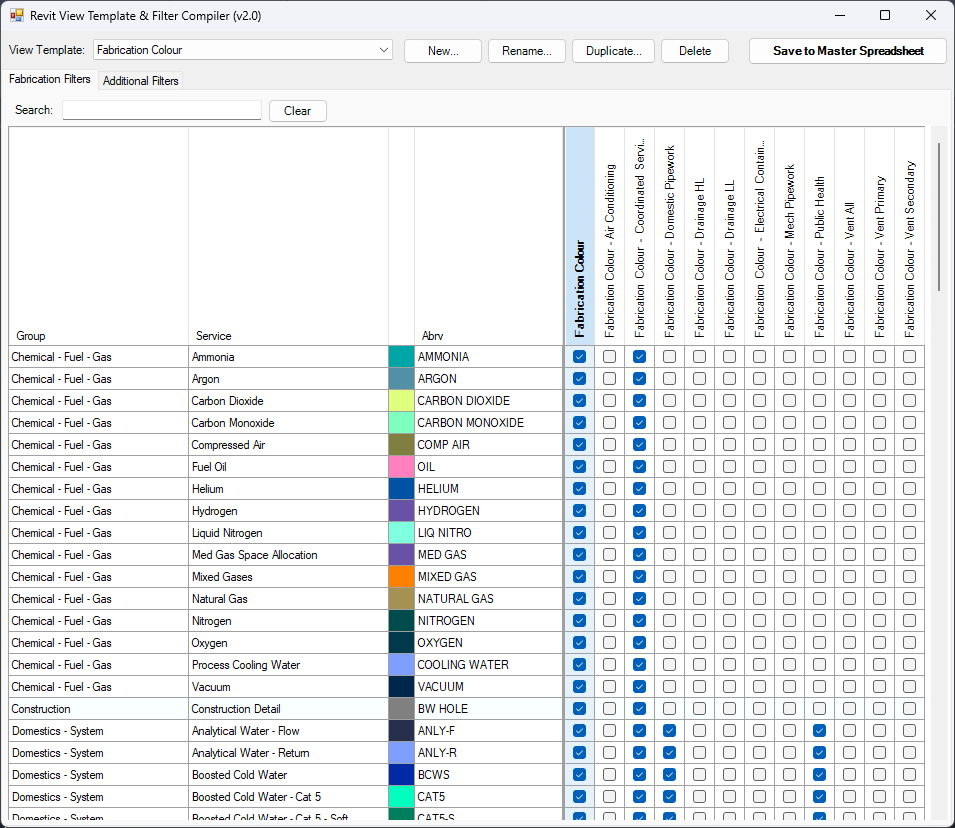
The Revit View Template & Filter Compiler window opens.
-
Make your changes on the two tabs (see below).
- Click Save to Master Spreadsheet.
- In Revit, run Sync Templates to bring your template or project up to date.
Managing view templates
The View Template list at the top shows the standard view templates held in the master file. Use the buttons beside it to work with them:
| Button | What it does |
|---|---|
| New... | Creates a new standard view template. |
| Rename... | Renames the selected template. |
| Duplicate... | Copies the selected template, ready to adjust. |
| Delete | Removes the selected template from the master file. |
Only add templates the team will reuse
The standard set is mainly for sheet production. Only add a template here if it's likely to be needed again on other jobs. For your own working views, create your own templates in Revit and leave the standard set alone.
Fabrication Filters tab
Each row is a service from the Fabrication database, with its group, colour and abbreviation. Each column is a standard view template. Tick a box to include that service's filter in that template.
- Use Search to find a service quickly, and Clear to show them all again.
- Fabrication Colour is the master view template. The other templates are based on it.
Additional Filters tab
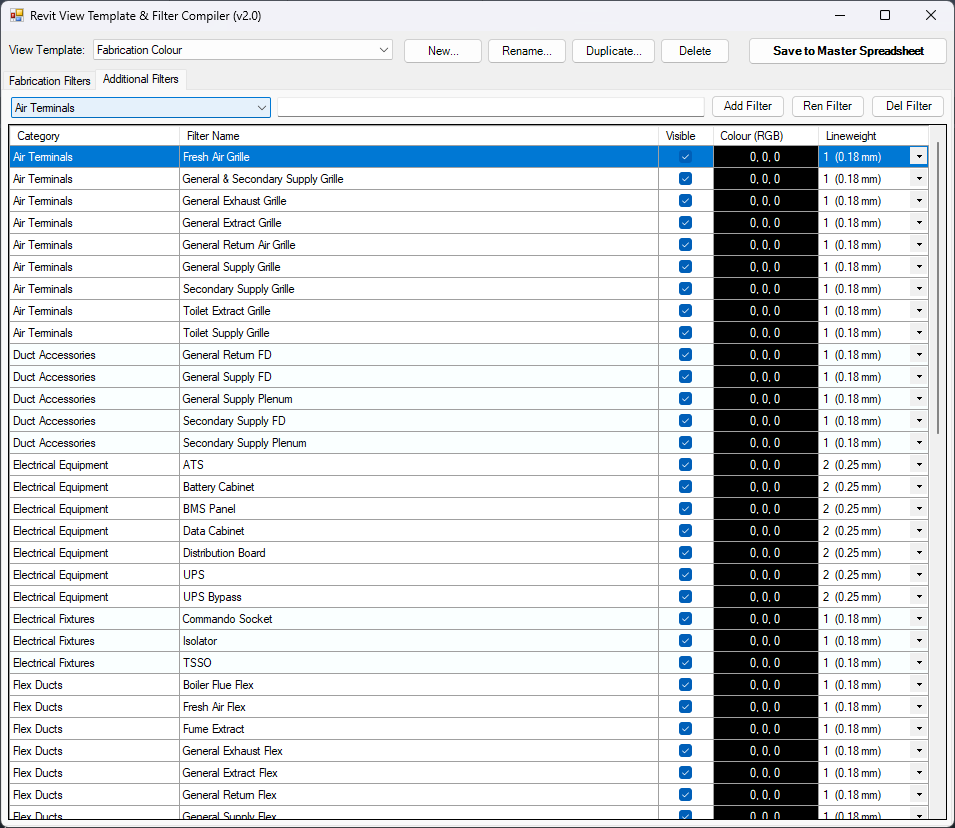
Additional filters cover native Revit categories that aren't Fabrication parts, such as air terminals, duct accessories, electrical equipment and flex ducts. In Revit these are filtered using key schedules (see Key schedules).
- Choose a category from the list to show its filters.
- Use Add Filter, Ren Filter and Del Filter to manage them.
- For each filter, set whether it's Visible, its Colour (RGB) and its Lineweight.
Settings on this tab belong to the view template selected in the View Template list, so the same filter can be visible in one template and hidden in another, or use a different colour.
Remember the main templates
If you create a new filter for a specific service template, it will almost certainly be needed in Fabrication Colour and Fabrication Colour - Coordinated Services too. Please make sure it's added to those as well.
Right-click shortcuts
Both tabs have right-click menus that save a lot of ticking and clicking. Most of them work on all the rows you've selected, so select several rows first (Ctrl or Shift + click) to change them in one go.
On a service (Fabrication Filters tab)
| Option | What it does |
|---|---|
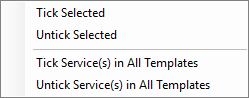
| Tick Selected / Untick Selected | Ticks or unticks the selected services in the selected template. |
| Tick Service(s) in All Templates / Untick Service(s) in All Templates | Ticks or unticks the selected services in every template at once. |
On a template column (Fabrication Filters tab)
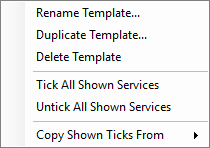
| Option | What it does |
|---|---|
| Rename / Duplicate / Delete Template | The same as the buttons at the top of the window. |
| Tick All Shown Services / Untick All Shown Services | Ticks or unticks every service currently shown in the list for that template. |
| Copy Shown Ticks From | Copies the ticks for the services currently shown from another template you pick from the list. |
Combine these with Search
"Shown" means the services currently in the list. Type in Search first (for example Drainage), then use Tick All Shown Services to tick just those services in one go.
On an additional filter (Additional Filters tab)
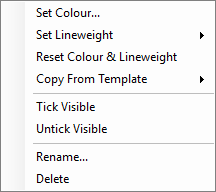
| Option | What it does |
|---|---|
| Set Colour... | Picks a colour for the selected filters. |
| Set Lineweight | Sets the lineweight for the selected filters, from 1 (0.18 mm) to 16 (8.00 mm). |
| Reset Colour & Lineweight | Resets the colour and lineweight of the selected filters. |
| Copy From Template | Copies the settings for the selected filters from another template you pick from the list. |
| Tick Visible / Untick Visible | Makes the selected filters visible or hidden in the selected template. |
| Rename... / Delete | Renames or deletes the selected filter. |
Next step
Once you've saved, sync your Revit template or project.