Ref Sequencer
Numbers the Integra Reference on Revit elements in sequence, such as fan coil units, grilles, plenums and attenuators, and tags them as it goes. Number elements one click at a time, or let the tool trace out from each unit and reference everything on its ductwork for you.
Integra Reference, not Mark
References are written to the Integra Reference shared parameter, never to Revit's Mark. Mark has to be unique, so Revit warns about duplicates, but sometimes the same reference genuinely needs to appear more than once.
At a glance
| Runs in | Revit 2024 |
| Ribbon | Integra Tools tab → Tagging Tools panel → Ref Sequencer   |
| Writes | Integra Reference |
| Tags with | Integra Reference Tag (sized to fit automatically) |
The three modes
| Mode | What it does |
|---|---|
| Manual | You click elements one at a time, and each gets the next reference in the sequence. Works on any category. |
| Semi-Automatic | You select units (mechanical equipment). The tool traces each unit's ductwork and references the attenuators and grilles or plenums it finds, based on the unit's own reference. |
| Automatic | As Semi-Automatic, but for every unit in the active view. |
Choose the mode at the bottom of the window. The tool remembers your choice while the window is open.
Manual mode
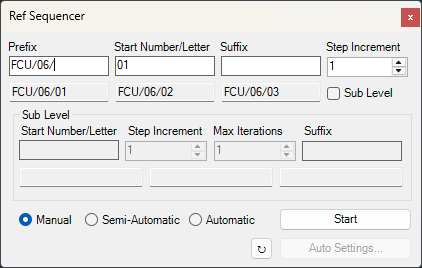
Setting up the sequence
| Setting | What it does |
|---|---|
| Prefix | Text before the number, for example FCU/06/. |
| Start Number/Letter | The first value, for example 01 or A. Leading zeros are kept, so 01, 02 ... 10. |
| Suffix | Text after the number. |
| Step Increment | How much each reference goes up by. |
The three boxes underneath preview the first three references, so you can check them before you start.
Numbers and letters both count up the way you'd expect: 01 to 02, 09 to 10, A to B, Z to AA.
Sub level
Tick Sub Level for two-tier references, such as several items sharing one number: FCU/06/01A, FCU/06/01B, then FCU/06/02A.
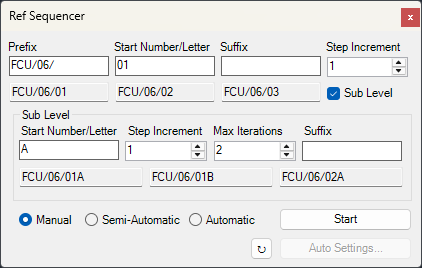
| Setting | What it does |
|---|---|
| Start Number/Letter | The first sub-level value, for example A. |
| Step Increment | How much the sub level goes up by. |
| Max Iterations | How many sub-level values each main number gets before moving on. With 2, you get 01A, 01B, then 02A. |
| Suffix | Text after the sub level. |
Numbering
- Set up the sequence and click Start.
- Click the first element. This locks the category, so from now on you can only pick elements of the same category. Fabrication ductwork is limited to attenuators, so straights and bends can't be numbered by mistake.
-
Keep clicking elements in order. Each gets the next reference and is tagged if it isn't already tagged in the view. A small panel at the top right of the screen shows the category and the next reference:
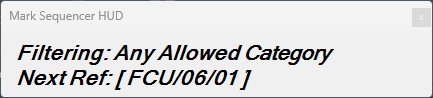
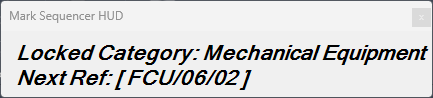
Before the first click it shows Any Allowed Category. After it, it shows the locked category, and the next reference moves on with every click.
-
Press Esc to finish. The window comes back, with the start value moved on to where you stopped, so you can carry on with the next run or change category.
The whole session is one undo step.
Semi-Automatic and Automatic modes
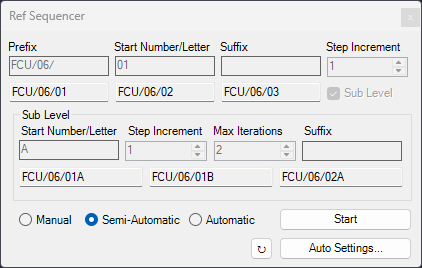
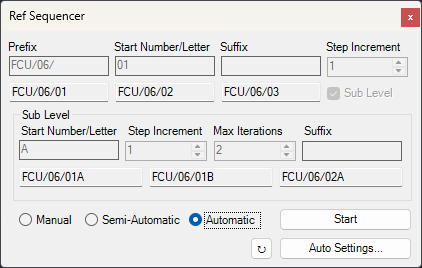
The sequence settings aren't used in these modes. References come from each unit's own reference and the Auto Settings (see below).
Step by step
- Make sure each unit already has its Integra Reference. Units without one are skipped.
- Choose Semi-Automatic or Automatic and click Start.
- Semi-Automatic: select the units to trace, by window or Ctrl-click, then click Finish. Automatic: every unit in the active view is traced.
- A summary shows what was found. Nothing has been changed yet. Click See details for the full list of proposed references, shown as old value -> new value, and a note for each unit where the trace stopped or found nothing.
-
Choose:
- Fill blank references only: existing references are left exactly as they are, and new ones won't reuse a reference already on that unit's items.
- Fill blanks and overwrite existing: everything is renumbered in order, including references typed by hand. Only offered when some items already have a reference.
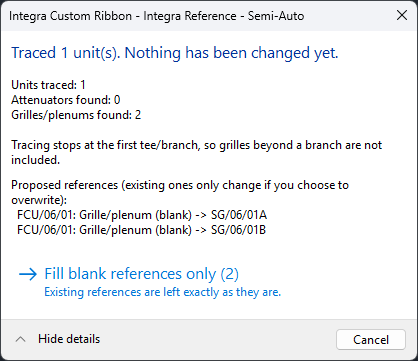
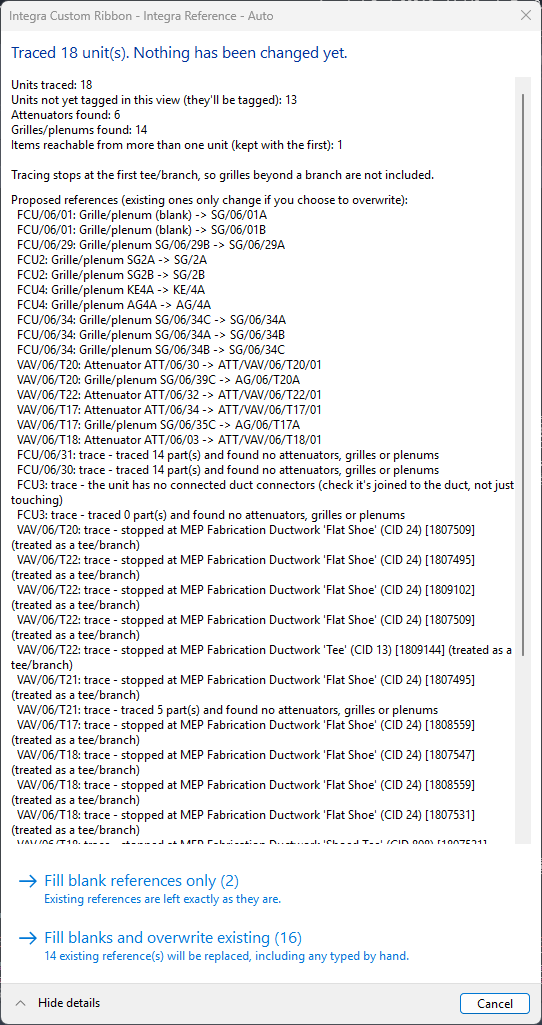
Left: one unit with two blank grilles, so only filling blanks is offered. Right: a whole view. Some items already have references, so overwriting is offered too, and the trace notes at the bottom show where each unit's trace stopped.
-
A final message confirms what was done.
Everything is applied in one go, as a single undo step. Units that have a reference but aren't yet tagged in the view are tagged too.
How the tracing works
From each unit, the tool follows the connected ductwork:
- It stops at the first tee, branch, tap or shoe, so grilles beyond a branch aren't included. Number those separately.
- Air terminals and dead-end duct accessories (such as plenums, with ductwork connected on one side only) end a run. Accessories with ductwork on both sides, such as dampers, are passed through.
- Attenuators found on the way are referenced too.
- Each grille or plenum takes its prefix from the Fabrication service of the ductwork it was reached through. If that service isn't in the Auto Settings table, it's left for you to number manually and listed in the summary.
- An item that can be reached from more than one unit stays with the first unit and is listed in the summary.
- A unit that isn't actually connected to its ductwork can't be traced. The details say the unit has no connected duct connectors. Check it's joined to the duct and not just touching: Auto-Flexi Duct can find and join these.
Reading the summary
| Line | Meaning |
|---|---|
| Units traced | How many units were followed. |
| Units not yet tagged in this view | These will be tagged. |
| Units skipped (no Integra Reference on the unit) | Give the unit a reference first. |
| Attenuators found / Grilles/plenums found | What the tracing picked up. |
| Left for manual numbering | Their service isn't in the Auto Settings table. |
| Items found without the Integra Reference parameter | Their category doesn't have the parameter. |
| Items reachable from more than one unit | Kept with the first unit. |
The details also show, for each unit, where the trace stopped or why nothing was found. Include those lines if you report a problem.
Auto Settings
Click Auto Settings... (Semi-Automatic and Automatic only) to set how references are built. The settings are saved in the project, so set them up in the Revit template and every new job gets them.
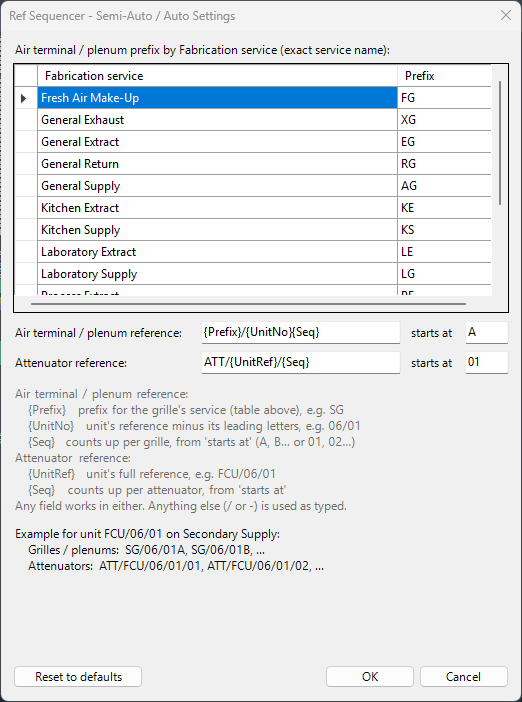
Air terminal / plenum prefix by Fabrication service: the prefix for each service, for example General Supply gives AG. The service name must match exactly.
Reference formats are built from these fields:
| Field | Means | Example (unit FCU/06/01) |
|---|---|---|
{Prefix} |
The grille's service prefix from the table | SG |
{UnitNo} |
The unit's reference without its leading letters | 06/01 |
{UnitRef} |
The unit's full reference | FCU/06/01 |
{Seq} |
Counts up from starts at | A, B ... or 01, 02 ... |
Anything else, such as / or -, is used as typed. The defaults are:
| Item | Format | Starts at | Gives |
|---|---|---|---|
| Air terminal / plenum | {Prefix}/{UnitNo}{Seq} |
A |
SG/06/01A, SG/06/01B ... |
| Attenuator | ATT/{UnitRef}/{Seq} |
01 |
ATT/FCU/06/01/01, ATT/FCU/06/01/02 ... |
The window checks your formats as you go and won't save until any mistakes are fixed, such as an unknown field or a missing {Seq}. Reset to defaults puts the standard formats back.
The refresh button
The small round button next to Auto Settings... refreshes the reference tags, resizing each tag's border to fit its text. It first offers to copy Mark into any blank Integra References across the project, which is useful on older jobs that were referenced with Mark.