Multi Service Tags
A multi-service tag labels a run of parallel services, such as ductwork, pipework and containment running side by side in a corridor, with one tag. It lists every service in order, with its size, service and level, so you don't need a separate tag on each one. Three tools work together:
| Tool | What it does |
|---|---|
| Multi Service Tagging | Pick the services in a run and place one tag for them all. |
| Multi Service Tag Settings | Choose how selected tags are laid out: column or line, levels, support type, width and order. |
| Refresh Multi Service Tagging | Rebuild every multi-service tag in the project and tidy up. |
Tools on the Modify tab
Select any multi-service tag and a Multi Service Tags panel appears on the Modify tab, with Multi Service Tag Settings and Refresh Multi Service Tagging.
What the tag shows
For each service in the run, in order across it:
- Size and service (the abbreviation, or the full name if there isn't one), plus the part's Alias where it has one, such as a tray, basket or valve type.
- Levels, grouped: services that share the same level are listed together, with the level once after the group.
- Slopes instead of levels on sloping services: a ratio on pipework (for example 1:50), a percentage on ductwork and degrees on containment.
The tag also has a header showing which way the list reads, for example Left to Right or Top to Bottom, so the order on the drawing can't be misread.
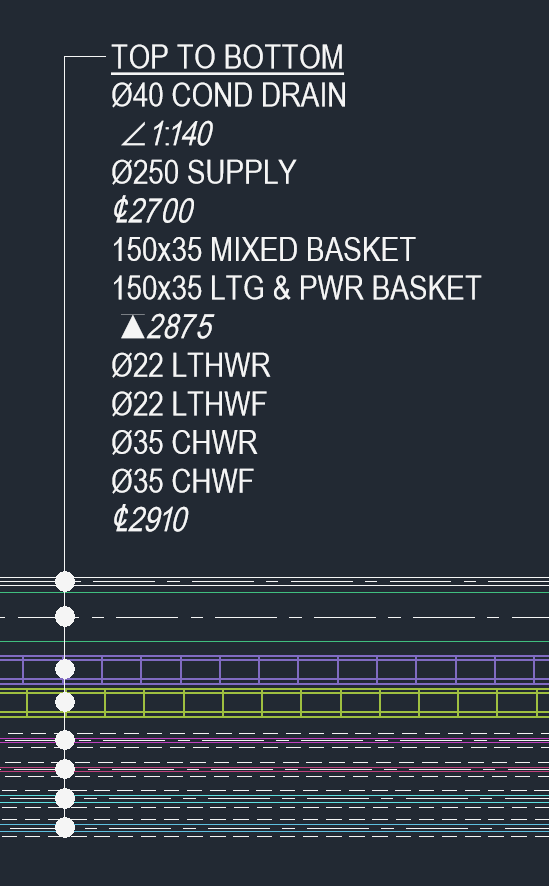
Eight services on individual hangers, read top to bottom. The condensate drain is sloping, so it shows its fall (1:140) instead of a level. The two baskets share a bottom-of-service level, and the four heating and chilled water pipes share a centreline level, so each level appears once after its group. The Dot family gives every service its own leader.
Individual hangers or trapeze
When you place a tag you choose how the services are supported, and the levels follow from that:
| Support | Levels shown |
|---|---|
| Individual hangers | Each service shows its own level, excluding lagging. Neighbouring services with the same level share it. |
| Trapeze | Services sharing a trapeze are grouped and given one top of support level: the lowest underside in the group, which is where the steel goes. |
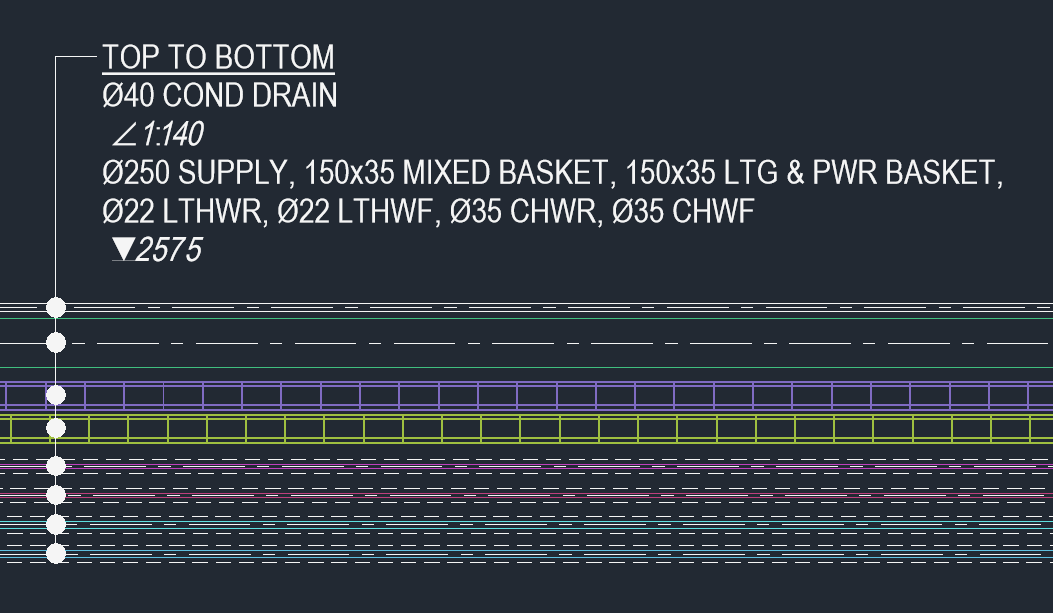
The same eight services as above, tagged as a trapeze in the Line layout. The services on the trapeze share one top-of-support level. The condensate drain is sloping, so it still shows its fall.
Each service's own level is measured to:
| Service | Level |
|---|---|
| Pipework | Centreline (CL) |
| Drainage | Bottom of pipe (BOP) |
| Rectangular and oval ductwork | Bottom of service (BOS) |
| Circular ductwork | Centreline (CL) |
| Containment | Bottom of service (BOS) |
Level symbols
| Symbol | Meaning |
|---|---|
| ₵ | Centreline |
| ▲ | Bottom of service |
| ▼ | Top of support (trapeze) |
| ∠ | Slope |
Tiers
Where services are stacked one above another, they can't share the same support steel, so the tag splits them into tiers, each with its own heading (TIER 1:, TIER 2: and so on, top down).
Services side by side share a support unless there's room for another set of steel between them: 41 mm of strut plus 25 mm clearance.
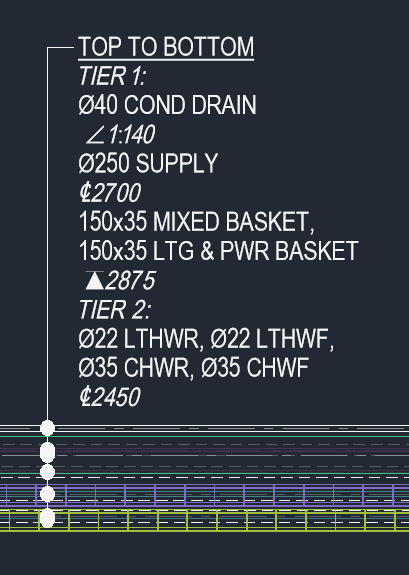
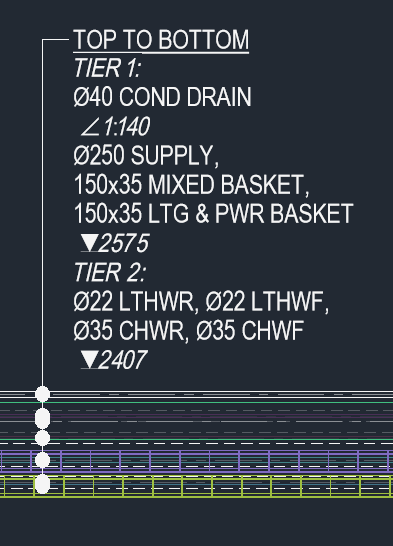
The same run in two tiers. Left: individual hangers, with each group's own level. Right: trapezes, with a top-of-support level for each tier.
Leaders
There are two tag families, one with Dot leaders and one with Arrow leaders:
- Dot: every service in the tag gets its own leader.
- Arrow: in each tier, only the service nearest the tag gets a leader.
New tags use the Dot family in plans and the Arrow family in sections and elevations. You can switch a tag to the other family afterwards, and its leaders update to suit.
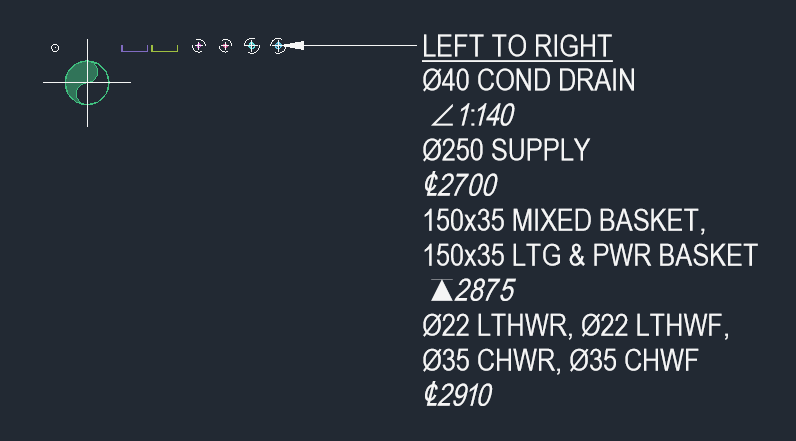
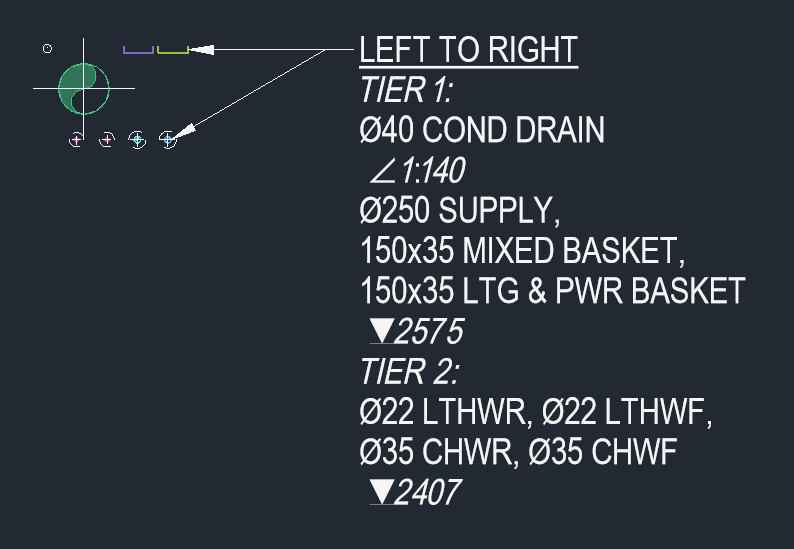
Arrow family tags in section, reading left to right. Left: one tier, so one leader. Right: two tiers on trapezes, so one leader to each tier.
Good to know
- Tags keep themselves up to date. Change a service's size, service or level, or move it, and its multi-service tags update automatically.
- Each tag keeps its own settings. The same run can be tagged in plan and section, and each tag can be laid out differently. A section tag of a run already tagged in plan picks up the same order, so the two match.
- Up to three differently worded multi-service tags per service. Tags showing exactly the same text share, so they don't count twice. If a service already shows three different tags, an extra one goes blank and Revit shows a warning highlighting it. Delete tags you don't need, or give tags covering the same services matching settings.
- Landing lines are added automatically where the leader leaves the tag. Don't move or delete these by hand.
- Separate from service tags. Multi-service tags and service tags don't affect each other, and neither tool's refresh touches the other's tags.