Service Tags
Integra's service tags label Fabrication ductwork, pipework and containment with any combination of Size, Service, Tag Suffix and Level, from just two tag families. Three tools work together to place and control them:
| Tool | What it does |
|---|---|
| Place Service Tag | Tag parts one click at a time, laid out automatically to suit each part. |
| Service Tag Settings | Choose what tags show, how wide they run and how they're laid out. With nothing selected, set the defaults for new tags. |
| Refresh Service Tags | Rebuild every service tag in the project and tidy up. |
Tools on the Modify tab
Select any service tag and a Service Tags panel appears on the Modify tab, with Service Tag Settings and Refresh Service Tags, so you don't need to switch to the Integra Tools tab.
Why we tag this way
Revit labels have two big limits:
- A label can't wrap across several parameters. Size, service, suffix and level each sit on fixed lines, so a tag can't reflow when it runs out of room.
- Every combination needs its own label. Size only, size and service, everything with the level below... multiplied across ductwork, pipework and containment, that quickly becomes a long list of tag families and types to maintain and choose from.
Integra's service tags get round both. An add-in builds the tag's text itself, so:
- Two families cover everything: one for tags outside the part with a leader, one for tags inside it.
- Any combination of fields can be switched on or off per tag, with no new families or types.
- The text wraps like an AutoCAD text box. Set a width and the words flow onto new lines as needed, using as few lines as the width allows.
- Tags lay themselves out. A tag goes inside the part if it fits, and outside with a leader if it doesn't.
- Tags keep themselves up to date. Change a part's size, service, Tag Suffix or level, the part's size or the view scale, and its tags update automatically.
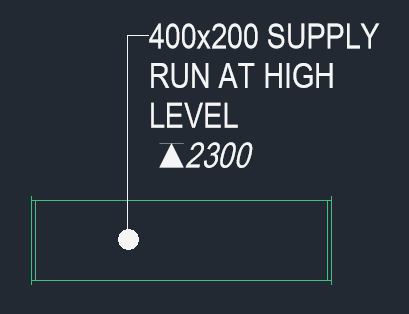
A Left tag set to 25 mm wide. Size and service fit on the first line, the long Tag Suffix wraps, and the level sits on its own line below.
The tag families
| Family | Goes | Leader | Types |
|---|---|---|---|
| ServiceTag - Left | Outside the part, left-justified | Yes | Dot and Arrow |
| ServiceTag - Centre | Inside the part (duct, pipe or tray), centred | No | Parallel (along the part) and Across (for short, wide parts) |
Centre tags rotate with the part.
Ignore the numbers in the type names
You'll see types such as Dot (2) or Across (3). The number is managed by the add-in and can change on its own. Don't change a tag's type to change the number. To change how a style looks, edit its base type (the one without a number) and the numbered copies follow automatically.
How tags are laid out
New tags use the Auto fit layout unless you choose otherwise:
- Centre - Parallel if the tag fits inside the part, running along it.
- Centre - Across if it only fits turned across the part.
- Otherwise Left, outside the part, with a Dot leader on straights or an Arrow leader on everything else (bends, tapers, shoes, dampers and so on).
Straights of any service (ductwork, pipework or containment) can take a centre tag when the text fits inside them, as can ductwork tapers, square-to-rounds and reducers. Everything else is tagged outside. Centre tags keep a small clearance from the inside of the part, 1 mm on paper unless you change it in Service Tag Settings.
Fields are never dropped to make a tag fit. The text wraps, turns, or goes outside.
When things change
Tags are rechecked automatically whenever their text, the part's size or the view scale changes. If a centre tag no longer fits, what happens depends on your setting in Service Tag Settings:
| Setting | What happens |
|---|---|
| Rearrange, split off level, else move out (default) | First it tries rearranging: wrapping, turning between Parallel and Across, or putting the level on the same line. If that's not enough, the level is split off into its own Left tag beside the part. Failing that, the whole tag moves outside. |
| Rearrange, else move outside | Tries rearranging first, then moves the whole tag outside. |
| Leave it and warn | Changes nothing. |
When tags are changed like this, Revit shows a warning and highlights them, so you can check they still read well.
Tags on parts that aren't shown in their view, for example outside the view range or hidden, are left alone until the part is visible again.
Tags you've set to Centre stay put
If you choose Centre - Parallel or Centre - Across yourself, the tag is pinned. It's never rearranged or moved out automatically, even if it stops fitting.
What each field shows
| Field | Comes from |
|---|---|
| Size | Ductwork: Fabrication_Duct_Size_Display, so rectangular sizes read correctly in elevation. Pipework and containment: Revit's Size. |
| Service | The Fabrication service abbreviation, or the full service name if there isn't one. |
| Tag Suffix | The part's Tag Suffix parameter, for notes such as AT HL. |
| Level | The finished level text, including its symbol, written by the Fabrication level tools. |
Our tagging standard
- Preliminary issue: Size + Service + Tag Suffix.
- Construction issue: add the Level, on its own line below where space allows. If things are tight, it can share the bottom line instead. This applies to both Left and Centre tags.
Construction Issue does this switch for you, sheet by sheet, when drawings go to construction.
Good to know
- Each tag keeps its own settings. The same part can be tagged in plan and section, or twice in one view, and each tag can show something different.
- Up to four differently worded tags per part. Tags showing exactly the same thing share text, so they don't count twice. If a part already shows four different tags (which can happen after duplicating views), any extra tag goes blank and Revit shows a warning highlighting it. Delete tags you don't need, or give tags on the same part matching settings so they can share. The blank tag fills in as soon as a slot frees up.
- Landing lines are added automatically. Left tags have a short horizontal landing, level with the first line of text. Where Revit would leave a gap, a small Service_Tag_Leader_Extension line is drawn to fill it. Don't move or delete these by hand.
- Revit's own Multi-Category tag still works with the service tag families. The tag picks up your default settings, but it isn't laid out automatically. Place Service Tag is the better choice.