Refresh Service Tags
Rebuilds every service tag in the project and removes any landing lines left behind by deleted tags.
Service tags normally keep themselves up to date, so you won't need this often. Use it when tags look out of date, after opening a model that was edited without the Integra add-ins, after the Integra add-ins have been updated, or before issuing drawings as a final check.
At a glance
| Runs in | Revit 2024 |
| Ribbon | Integra Tools tab → Tagging Tools panel → Refresh Service Tags   |
| Also on | The Modify tab, whenever a service tag is selected |
| Works on | Every service tag in the project |
Step by step
- Click Refresh Service Tags, on the Integra Tools tab or, with a service tag selected, the Modify tab.
-
Read the report, then click Close.
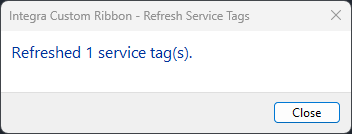
Reading the report
| Message | Meaning |
|---|---|
| Refreshed … service tag(s) | Tags brought up to date. |
| Removed … orphaned landing line(s) | Landing lines whose tag had been deleted were tidied up. |
| … not on a fabrication part and were skipped | The tag is pointing at something that isn't a Fabrication part. Check it's tagging the right element. |
| Cleared old text from … unused tag slot(s) | Tidying only: text left behind by deleted or changed tags was removed. |
| … tag(s) are blank | Their part already shows four differently worded service tags. Each is listed with its view. Delete tags you don't need, or give tags on the same part matching settings so they can share. |
| Centre tags that no longer fitted inside their duct | These were rearranged, split or moved outside, following your fitting setting. Check they still read well. (The message says "duct", but it applies to pipework and containment too.) |
| … could not be refreshed | Something went wrong on that tag. The reason is listed with its ID. |
The whole run is a single undo step.