Refresh Multi Service Tagging
Rebuilds every multi-service tag in the project, removes landing lines left behind by deleted tags, and reports anything that needs attention.
Multi-service tags normally keep themselves up to date, so you won't need this often. Use it when tags look out of date, after opening a model that was edited without the Integra add-ins, or before issuing drawings as a final check.
At a glance
| Runs in | Revit 2024 |
| Ribbon | Integra Tools tab → Tagging Tools panel → Refresh Multi Service Tagging   |
| Also on | The Modify tab, whenever a multi-service tag is selected |
| Works on | Every multi-service tag in the project |
Step by step
- Click Refresh Multi Service Tagging, on the Integra Tools tab or, with a multi-service tag selected, the Modify tab.
-
Read the report, then click Close.
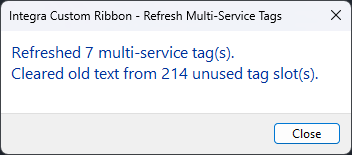
Reading the report
| Message | Meaning |
|---|---|
| Refreshed … multi-service tag(s) | Tags brought up to date. |
| Converted … older multi-service tag(s) to the new format | Tags placed with an earlier version have been upgraded. This only happens once per project. |
| … older tag(s) could not be converted | Their services already belong to three other tags. Delete tags you don't need, then refresh again. |
| Cleared old text from … unused tag slot(s) | Tidying only: text left behind by deleted or changed tags was removed. |
| … tag(s) are blank | Their services already show three differently worded multi-service tags. Each is listed with its view. Delete tags you don't need, or give tags covering the same services matching settings. |
| … service(s) are owned by another user | Those services weren't updated. Refresh again once they're released. |
| … tag(s) could not be refreshed | Something went wrong on that tag. The reason is listed with its ID. |
| Removed … orphaned landing line(s) | Landing lines whose tag had been deleted were tidied up. |
| … landing line(s) sit outside their view's crop region | They won't print. Move those tags inside the crop region. |