Navisworks Clash Tests
Works out which clash tests this model actually needs, based on the Fabrication services, equipment, existing items and linked models it contains, and writes them to a file you import into Navisworks Clash Detective. Later runs only give you the tests that are new, so tests you've already reviewed in Navisworks are never overwritten.
At a glance
| Runs in | Revit 2024 |
| Ribbon | Integra Tools tab → Fabrication Tools panel → Navisworks Clash Tests   |
| Saves to | <Project Path>\06. DRAWINGS\XX. NAVIS |
| Creates | Clash test XML files, and search sets for the linked models |
| Changes in Revit | Nothing, unless you choose to update out-of-date Navis stamps |
Before you start
- Project Path must be filled in under Manage → Project Information, pointing at the job's root folder. The files are saved in its
06. DRAWINGS\XX. NAVISfolder. If it's missing or the folder can't be found, the tool asks you where to save instead. - Phases matter. Only Fabrication parts created in the Proposed or New Construction phase are given service tests. Parts and equipment in the Existing phase are tested against, not tested.
- The service search sets must already be in Navisworks. The clash tests point at the Fabrication service search sets (Clash Detection Search Sets and All Services Sets). These are created from the Fabrication database by the XMLout command in AutoCAD, which also creates the Fabrication Colour - V#.# Appearance Profiler profile. They're saved as
X:\Revit Libraries\Revit Fabrication Search Sets.xml. If the search sets aren't loaded, the tests have nothing to test.
Step by step
- On the Integra Tools tab, in the Fabrication Tools panel, click Navisworks Clash Tests.
- If any Fabrication parts have out-of-date Navis stamps, you're warned first. Choose Update now and continue (recommended), Continue without updating, or Cancel. If you update, export a fresh NWC afterwards so Navisworks sees the new values.
-
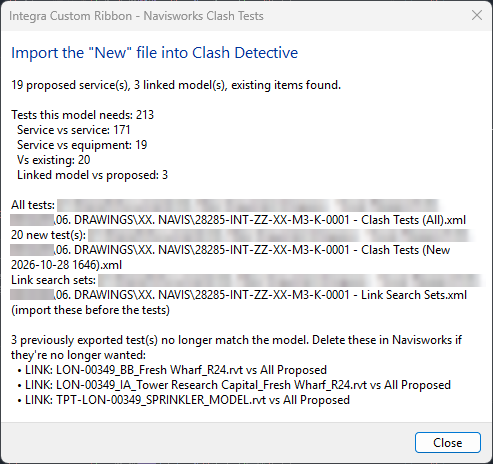
The files are written and a summary appears.
-
In Navisworks, import the files in this order:
- Service search sets (if they're not already loaded, or have been updated): in the Sets window, click Import/Export → Import Search Sets and choose
X:\Revit Libraries\Revit Fabrication Search Sets.xml. - Link Search Sets (if any): import them the same way, from the job's
06. DRAWINGS\XX. NAVISfolder. - The clash tests: in Clash Detective, click Import/Export Clash Tests → Import Clash Tests. Import the New file if there is one. Use the All file only for a brand new Navisworks model.
- Service search sets (if they're not already loaded, or have been updated): in the Sets window, click Import/Export → Import Search Sets and choose
- Delete any tests the summary lists as no longer matching the model, if they're not wanted.
The files it writes
All three are named after the Revit model:
| File | What's in it | When to import it |
|---|---|---|
| … - Clash Tests (All).xml | Every test this model needs. Overwritten each run. | Setting up a new Navisworks model from scratch. |
| … - Clash Tests (New date time).xml | Only the tests that weren't in any previous export. | Every other time. This is the one to use. |
| … - Link Search Sets.xml | A search set for each linked model. | Before the tests, whenever the links have changed. |
The model keeps its own record of which tests have been exported, so the New file never repeats a test. That's what stops reviewed tests in Navisworks from being replaced.
The tests it creates
| Prefix | Tests | Type | Tolerance |
|---|---|---|---|
| SVS: | Every proposed service against every other proposed service | Hard | 1 mm |
| EQUIP: | Every proposed service against all proposed equipment | Hard | 1 mm |
| EXIST: | Every proposed service, and all proposed equipment, against everything existing | Clearance | 25 mm |
| LINK: | Each linked model against everything proposed | Hard | 1 mm |
Only tests the model needs are created. For example, there are no EXIST tests if the model has nothing in the Existing phase, and no LINK tests if it has no links.
Reading the summary
- The first line: how many proposed services and linked models were found, and whether anything existing was found.
- Tests this model needs: the total, broken down by type.
- File locations: where each file was saved.
- No longer match the model: tests from earlier exports that this model doesn't need any more, for example because a link was swapped or a service removed. They're still in Navisworks, so delete them there if they're no longer wanted.
- Couldn't read the Fabrication group: those services' tests are put in an Unassigned folder instead.
- Part(s) had their Navis stamps updated: export a fresh NWC before running the tests.
Tip
Run Refresh Navis Data Stamps before this tool, and before exporting the NWC, so every element is in the right search set.