Refresh Navis Data Stamps
Checks every Fabrication part and connected native element in the model, and makes sure the parameters that Navisworks relies on are correct. It also keeps the Style keys on native elements in step with their Fabrication service, and reports anything that needs your attention.
Why it's needed
When a Revit model is opened in Navisworks, all Fabrication insulation ends up in one category, and native elements such as grilles, valves and flex duct don't carry a Fabrication service at all. That makes it hard to build search sets and clash tests by service.
To fix this, Integra add-ins "stamp" each element with its service:
| Parameter | Written on | Holds |
|---|---|---|
| Navis_Insulation_Service | Fabrication parts | The service name, if the part has external insulation |
| Navis_Liner_Service | Fabrication parts | The service name, if the part has an internal lining |
| Navis_Is_Insulated | Fabrication parts | Yes or No |
| Navis_Hybrid_Service | Native elements connected to Fabrication | The service of the nearest connected Fabrication part |
These are kept up to date automatically in the background as you work. Refresh Navis Data Stamps runs the same checks across the whole model in one go.
At a glance
| Runs in | Revit 2024 |
| Ribbon | Integra Tools tab → Fabrication Tools panel → Refresh Navis Data Stamps   |
| Works on | The whole model |
| Changes | Navis parameters, Style keys, and broken connections between families and Fabrication parts |
When to run it
- Before exporting to Navisworks, so search sets and clash tests pick up every element.
- After opening an older model, or one that's been edited by someone without the Integra add-ins.
- After large changes, such as swapping services or reworking a run.
- To find elements that need a Style picking.
Step by step
- On the Integra Tools tab, in the Fabrication Tools panel, click Refresh Navis Data Stamps.
- Wait while it checks the model. On a large model this can take a little while.
- Read the summary (see below), then click Close.
The whole run is a single undo step.
Reading the summary
The summary is long, so it's explained here one section at a time. Any element listed is shown with its ID, for Manage → Select by ID. Each list shows the first 10 elements and how many more there are.
Fabrication Statistics

Every Fabrication part has been checked and stamped:
- Externally insulated: the part has insulation, so its service is written to Navis_Insulation_Service.
- Internally lined: the part has a lining, so its service is written to Navis_Liner_Service.
- Uninsulated: no insulation or lining, so the insulation fields are cleared and Navis_Is_Insulated is set to No.
Hybrid Family Statistics

Native elements (families, native duct and pipe, flex duct) are traced back through whatever they're connected to, up to six elements away, to find the nearest Fabrication part. Equipment, such as fan coil units, is never stamped and is never traced through.
- Stamped/Verified: the element's Navis_Hybrid_Service matches the connected Fabrication service.
- Cleared: the element is no longer connected to Fabrication, so its old service has been removed.
- Connections repaired (family touching Fabrication but not connected): a family was sitting against an open Fabrication end (within 10 mm) but wasn't actually connected. It's now connected, then stamped.
Service Filter (Style keys)
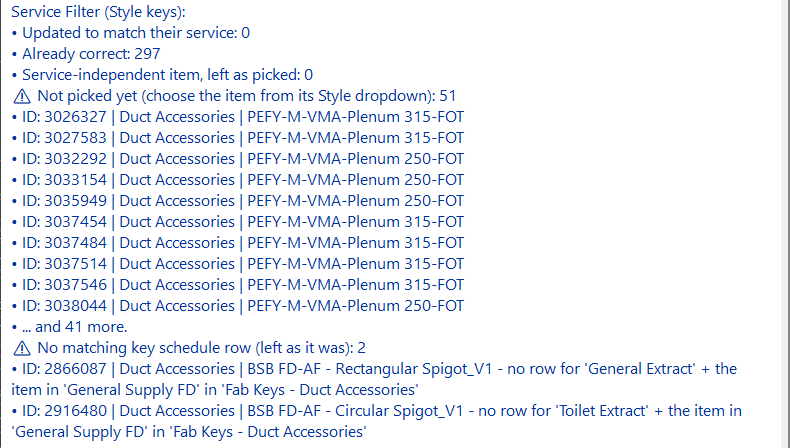
This is the same Style key sync described in RVTFC: What's kept up to date for you.
- Updated to match their service: the service part of the element's Style was changed to match its Fabrication run.
- Already correct: nothing needed changing.
- Service-independent item, left as picked: rows such as Expansion Vessel, which don't depend on the service.
Two lists need action:
| List | What to do |
|---|---|
| Not picked yet | The add-in can't tell which item the element is (for example, plenum or fire damper). Select it and pick the right row from its <Category> Style in the Properties palette. From then on, the service is kept up to date for you. |
| No matching key schedule row | The element needs a row that doesn't exist yet, for example a fire damper on a service that has no fire damper row. Add it on the Additional Filters tab of the RVTFC AutoCAD plugin, then run Sync Templates and refresh again. |
Orphaned elements
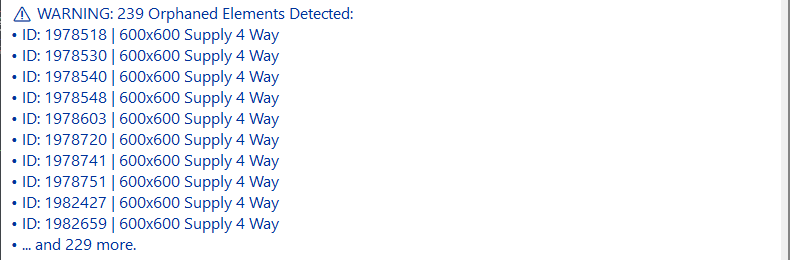
Orphaned elements are native elements that aren't connected to any Fabrication run, so they can't be given a Navis service. In Navisworks they won't appear in service search sets or clash tests.
- If the element should be connected, such as a grille with no flex, connect it. Auto-Flexi Duct can do this for ductwork.
- If it's meant to stand alone, it can be ignored.
If everything is connected, the summary ends with a success message instead.
Borrowed elements are skipped
In a workshared model, anything another user has borrowed can't be changed, so it's skipped and counted in the summary. Ask them to sync and relinquish, then run the refresh again.