Auto-Flexi Duct
Finds open round duct ends that should be joined with flexible duct, such as a Fabrication branch and the spigot on a grille or fan coil unit, and connects them for you. Each flex is created the right size, shaped to suit both ends, and keyed to the correct service so it displays in the right colour.
At a glance
| Runs in | Revit 2024 |
| Ribbon | Integra Tools tab → Fabrication Tools panel → Auto-Flexi Duct   |
| Works on | Round duct: Fabrication ductwork, native duct and fittings, air terminals, duct accessories and mechanical equipment |
| Searches | The active view, or the whole model |
| Creates | Flexible duct, using the project's default flex duct type, with its Flex Duct Style set |
Step by step
- Open a plan, section, elevation or 3D view showing the area you want to connect.
- On the Integra Tools tab, in the Fabrication Tools panel, click Auto-Flexi Duct.
-
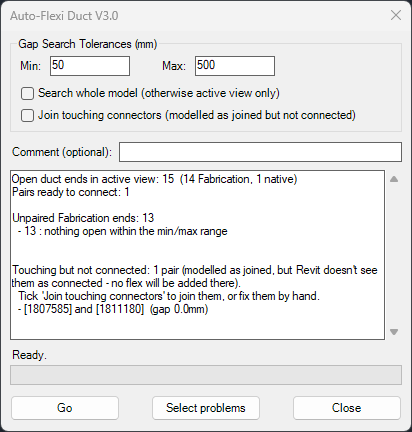
The window opens and scans straight away. The report shows how many open ends it found and how many pairs are ready to connect.
-
Adjust the settings if needed. The report updates as you type.
- Min and Max: the shortest and longest gap to bridge, in mm. The defaults are 50 and 500.
- Search whole model: tick to look everywhere, not just the active view. It's ticked for you if the active view isn't a plan, section, elevation or 3D view.
- Join touching connectors: off by default. Tick it to also join ends that are modelled as connected but aren't (see Touching but not connected).
- Comment (optional): anything typed here goes into the Comments of every flex created, which makes them easy to find or filter later.
- Click Go. The progress bar shows each flex as it's created. Click Stop if you need to: it finishes the current flex, then stops.
-
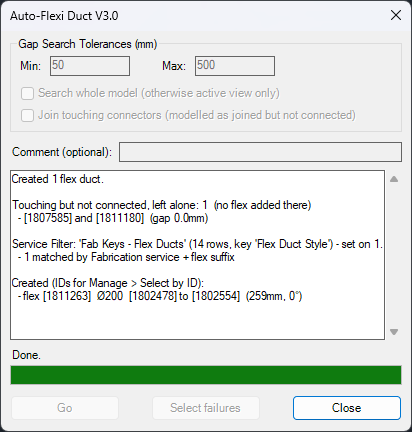
Read the report, then click Close.
One undo step
The whole run is a single undo step. If the result isn't what you wanted, press Ctrl+Z to remove every flex it created.
How it decides what to connect
Two open ends are paired only if all of these are true:
- At least one end is Fabrication. Two native ends are never joined.
- Both ends are round and the same diameter (within 1 mm).
- The gap is between Min and Max.
- The flow directions are compatible. An inlet is never joined to another inlet, or an outlet to another outlet.
- The ends face each other.
- The flex wouldn't need to bend more than 90°.
- The bend isn't too tight. The flex's tightest bend must be at least half its diameter, so it can't fold through itself.
If an end could pair with more than one partner, the closest and straightest match wins. Each end is only ever used once.
Fan coil units and other multi-option families
Some families carry connectors for spigots that aren't used by the chosen type. Auto-Flexi Duct ignores these, so it won't try to connect to a spigot that isn't there. The report shows how many it ignored.
Reading the report
Before you click Go
The report lists any unpaired Fabrication ends and why they weren't paired:
| Reason | What to check |
|---|---|
| nothing open within the min/max range | Usually fine: the end is meant to stay open. If not, increase Max or check the other end is actually open. |
| nearby end is a different size or not round | The two ends don't match in size, or one is rectangular. Fix the size, or connect it manually. |
| flow directions clash (In-In or Out-Out) | Check the flow direction on the family's connector, or the system the duct belongs to. |
| nearby end isn't facing this one | The ends point away from or past each other. Check the duct or family is the right way round. |
| would need a bend over 90° | Reroute the duct so the ends line up better. |
| gap too tight for that bend at this diameter | Move the ends further apart, or line them up more directly. |
| partner taken by a closer / straighter match | Another end was a better fit. Usually fine, but check nothing has been paired with the wrong partner. |
Click Select near-misses to select every Fabrication end that nearly paired. The window closes so you can look at them in the model. If any touching-but-not-connected ends were found, the button is called Select problems and selects those too.
After you click Go
- Created: how many flex ducts were made.
- Joined: touching connectors that were joined, if you ticked Join touching connectors.
- Touching but not connected, left alone or couldn't be joined: see Touching but not connected.
- Not created: any pair that couldn't be completed, with the reason.
- Placed but Revit refused the connection: the flex was drawn but Revit wouldn't join it to one or both ends. Check and reconnect these manually.
- Service Filter: how many flexes were keyed, and how (see below).
- Created (IDs for Manage > Select by ID): the ID of every new flex and the two elements it joins, with its diameter, length and bend. Use Manage → Select by ID to find one.
If anything failed, click Select failures to select the elements involved.
Touching but not connected
Sometimes two elements look joined but Revit doesn't see them as connected, for example when an inline unit has been dropped onto a duct run. Their open connectors sit on top of each other (within 5 mm, facing each other).
Auto-Flexi Duct never puts a flex there. Instead the report lists them under Touching but not connected, with the IDs of both elements and the gap between them.
You can either:
- Fix them by hand, or
- Tick Join touching connectors before clicking Go, and the tool joins them for you. This works for any duct shape, as long as both connectors are the same shape and size. If they don't match, the report says why, for example (can't join: 400x200 vs 300x200), and they're left alone.
Tip
These are modelling errors, so they're worth fixing even when you're not adding flex. A run that isn't really connected won't pass its service on to the elements beyond the break.
Service keying
Every flex it creates has its Flex Duct Style set from the Fab Keys - Flex Ducts key schedule, so it displays as part of its service:
- It looks for a row matching the Fabrication end's service plus Flex, for example General Supply Flex.
- If there isn't one, it falls back to the service of the native end.
- If no matching row exists, the Style is left unset and the flex is listed in the report.
See RVTFC: Key schedules for how the keys work, and why the Style should never be set to (none).
Tip
If a flex shows in the wrong colour, or the report says no row was found, check that service has a Flex row on the Additional Filters tab of the RVTFC AutoCAD plugin, then run Sync Templates.