Service Tag Settings
Choose what service tags show, how wide they run before wrapping, and how they're laid out. Run it with tags selected to change those tags, or with nothing selected to set the defaults for new tags.
At a glance
| Runs in | Revit 2024 |
| Ribbon | Integra Tools tab → Tagging Tools panel → Service Tag Settings   |
| Also on | The Modify tab, whenever a service tag is selected |
| Works on | Selected service tags, or your defaults for new tags |
Step by step
- Select the service tags to change. They can be in different views, and a mix of Left and Centre tags.
- Click Service Tag Settings, on the Modify tab or the Integra Tools tab.
-
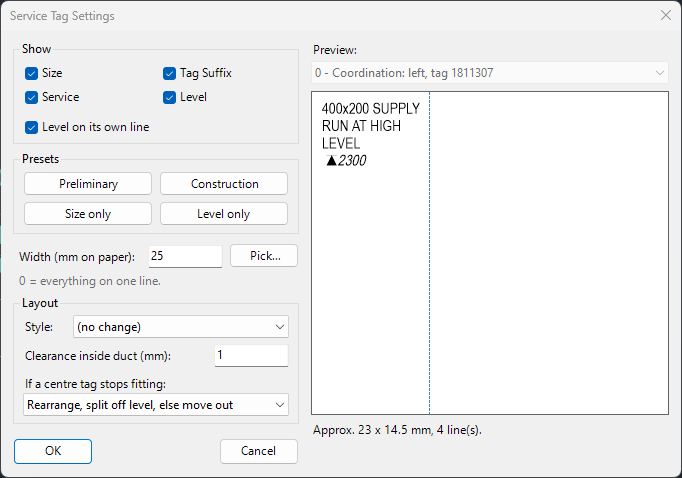
Make your changes (see below). The Preview shows the result as you go.
-
Click OK.
Whatever you apply also becomes your default for new tags.
- Make sure nothing is selected.
- On the Integra Tools tab, click Service Tag Settings. The window title ends defaults for new tags.
- Set the fields, width and Style you want new tags to start with.
- Click OK.
These defaults are used by Place Service Tag, and they're remembered between Revit sessions. Pick... isn't available here, as there's no tag to measure for.
The settings
Show
Tick the fields to show: Size, Service, Tag Suffix and Level.
Level on its own line puts the level on a separate line below everything else. Untick it to let the level flow along with the other fields.
Mixed selections
Like the Properties palette, a setting that's the same on every selected tag shows its value. One that differs shows as a filled box. Leave it filled and each tag keeps its own value. Click it and every selected tag gets the new value.
Presets
The preset buttons just set the tick boxes for you:
| Preset | Size | Service | Tag Suffix | Level |
|---|---|---|---|---|
| Preliminary | ✓ | ✓ | ✓ | |
| Construction | ✓ | ✓ | ✓ | ✓ |
| Size only | ✓ | |||
| Level only | ✓ |
Width
Width (mm on paper) sets the longest a line can be before the text wraps. 0 keeps everything on one line.
The text wraps word by word, like an AutoCAD text box: each word goes on the current line if it fits, otherwise it starts the next one, so the tag uses as few lines as the width allows. A single word wider than the width gets a line to itself.
Click Pick... to measure the width on screen instead:
- Click one end of the space available for the tag.
- Click the other end.
The measured width goes into the box.
Pick... can move the tag
If you're changing a single tag in the active view, Pick... also moves the tag to line up with your clicks: a Left tag starts at the first click, and a Centre tag slides to sit in the middle of them. With several tags selected, only the width is changed.
Layout
Style chooses how the tags are laid out:
| Style | Result |
|---|---|
| (no change) | Each tag keeps its current layout. Only shown when changing tags. |
| Auto fit (centre if it fits) | Inside the part if it fits, otherwise outside. See How tags are laid out. |
| Left - leader by part | Outside, with a Dot leader on straights and an Arrow on everything else. |
| Left - Dot / Left - Arrow | Outside, with that leader. |
| Centre - Parallel / Centre - Across | Inside the part, and pinned so it's never moved out automatically. |
Clearance inside duct (mm) is the gap a centre tag keeps from the inside of the part (duct, pipe or tray) on each side, on paper. The default is 1 mm.
If a centre tag stops fitting chooses what happens when a centre tag's text, the part's size or the view scale changes and it no longer fits. See When things change.
Clearance and the fitting option are personal settings
These two settings apply to every service tag you work on, not just the selected ones, and they're remembered on your computer between sessions.
The preview
The Preview on the right shows exactly how the text will look. With several tags selected, choose which one to preview from the list above it. Each is shown with its view name, whether it's a left or centre tag, and its ID.
The dashed line marks the width you've set, and the line underneath gives the approximate size of the text and the number of lines.
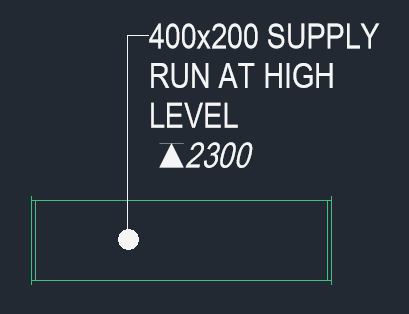
What you see is what you get. The tag in the drawing matches the preview line for line:
Good to know
- Tags owned by another user are skipped, and the number skipped is reported.
- "These tags are blank": the part already shows four differently worded service tags. Delete tags you don't need, or give tags on the same part matching settings so they can share. Use Manage → Select by ID to find the tags listed.