Master Dependent View Duplicator
Set up your dependent views once, on a Master Control View, and let this tool copy them onto every other plan. Each copy gets the same scope box, crop and grid set-up as the master, so every service drawing lines up perfectly.
At a glance
| Runs in | Revit 2024 |
| Ribbon | Integra Tools tab → View Tools panel → Master Dependent View Duplicator   |
| Works on | Plan views |
| Use it when | You've created new service plans (for example ventilation, pipework or drainage) that need the job's standard dependent views |
How it works
graph LR
  M[Master Control View] --> A[Sheet 1 of 3 - West]
  M --> B[Sheet 2 of 3 - South]
  M --> C[Sheet 3 of 3 - North]
  T[Level 06_FFL] -.copied.-> TA[Level 06_FFL - Sheet 1 of 3 - West]
  T -.copied.-> TB[Level 06_FFL - Sheet 2 of 3 - South]
  T -.copied.-> TC[Level 06_FFL - Sheet 3 of 3 - North]
At the start of a job, one plan is set up as the Master Control View, with a dependent view for each area of the building. Each dependent has its scope box, crop and grids set up exactly as they should appear on the drawings.
When you create a new service plan, the tool gives it a matching set of dependent views, copied from the master.
Setting up the Master Control View
Do this once per job (or once per building or zone group on larger jobs).
- Create a plan view and include Master Control View in its name.
- Create a dependent view for each drawing area (right-click the view → Duplicate View → Duplicate as a Dependent).
- On each dependent, set:
- the scope box
- the crop region and annotation crop
- the grids: which are visible, their 2D extents, and which bubbles are shown
- Name each dependent by sheet number and area, for example
Sheet 1 of 3 - West.
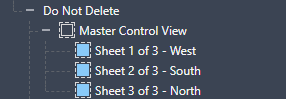
Name the master's dependents carefully
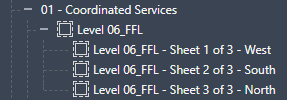
The tool names each new dependent <new parent view name> - <master dependent name>. So if the master's dependent is called Sheet 1 of 3 - West and you duplicate onto Level 06_FFL, the new view is called Level 06_FFL - Sheet 1 of 3 - West.
Don't include the master's own name in its dependents. A dependent called Master Control View - Sheet 1 of 3 - West would produce Level 06_FFL - Master Control View - Sheet 1 of 3 - West.
More than one master
On larger jobs you can have several masters, for example Master Control View - Podium and Master Control View - Tower. The tool asks which one to copy from. If no view has "Master Control View" in its name, it lets you pick any plan that has dependent views.
Step by step
- Create your new service plans as normal, with the right view template, but don't add dependent views to them.
- On the Integra Tools tab, in the View Tools panel, click Master Dependent View Duplicator.
-
If there's more than one Master Control View, pick the one to copy from and click Select. If there's only one, this step is skipped.
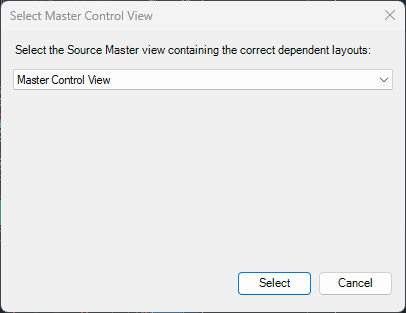
-
In Select Target Parent Views, tick the plans to give dependent views to. Use Select All or Clear All to speed things up.
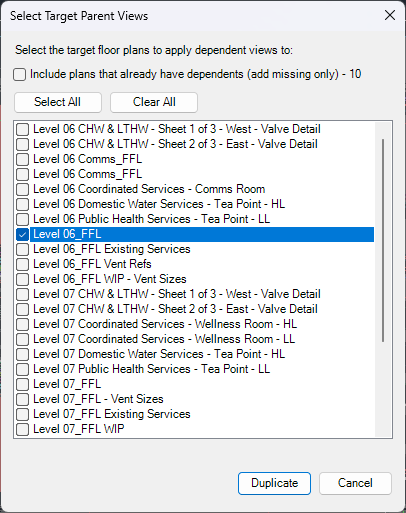
-
Click Duplicate. A progress bar fills as each view is created.
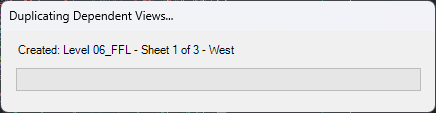
-
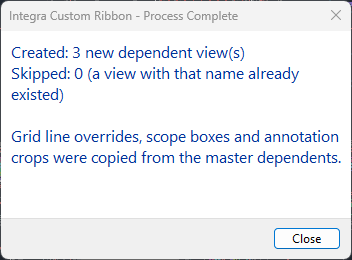
When the Process Complete message appears, check the totals and click Close.
-
Check the new views in the Project Browser.
The finished message shows how many views were:
- Created: new dependent views added.
- Skipped: a view with that name already existed, so it was left alone.
- Failed: couldn't be duplicated or renamed. This only appears if something went wrong.
Adding a new zone partway through a job
If a new dependent is added to the Master Control View after the service plans already have theirs, you can push just the new one out:
- Set up the new dependent on the Master Control View as normal.
- Run Master Dependent View Duplicator.
- In Select Target Parent Views, tick Include plans that already have dependents (add missing only). Plans that already have dependents are added to the list, each showing how many are missing, for example [has dependents - add 1 missing].
- Tick the plans to update and click Duplicate. Only the missing dependents are created. Existing ones are left untouched.
Note
"Missing" is worked out from the view names. A plan counts as having a dependent if a view called <plan name> - <master dependent name> already exists. If someone has renamed a dependent view, the tool sees it as missing and creates another.
What gets copied
For every dependent view on the master, each selected plan gets a new dependent view with:
- the same scope box
- the crop region switched on, with the master's crop visibility
- the same annotation crop setting and offsets
- the same grid set-up: grids hidden in the master dependent are hidden, 2D grid extents and grid ends are matched, and grid bubbles are shown or hidden to match
Good to know
- Plans that already have dependents are hidden by default. This stops views being given a second set by mistake. Tick Include plans that already have dependents to add missing ones (see Adding a new zone partway through a job).
- Existing views are skipped. If a view with the new name already exists, it's left alone and not duplicated.
- One undo step. The whole run is a single undo, so Ctrl+Z reverses it if you picked the wrong plans.
- Get the master right first. Each new dependent is a copy of the master at the time you run the tool. Later changes to the master aren't passed on to views that have already been created.