Grid Tools
Two tools for tidying grid lines on drawings: one lengthens or shortens grids to a line you pick, and the other puts them back to normal.
| Tool | What it does |
|---|---|
| Lengthen & Shorten Gridlines | Trims or extends every grid crossing a line to that line, in the current view, keeping or hiding the balloon at that end. |
| Reset Changes to Gridlines | Puts grids back to their full length with both balloons showing. |
Both only change grids in the current view. The grids themselves, and every other view, are untouched.
Lengthen & Shorten Gridlines
| Runs in | Revit 2024 |
| Ribbon | Integra Tools tab → Grid Tools panel → Lengthen & Shorten Gridlines   |
| Works in | Plans, sections and elevations |
| Trims to | A detail line (straight or curved), or a line inside a linked DWG |
Step by step
- Draw a detail line where you want the grids to end, crossing every grid to change. Or use a line in a linked or imported DWG, such as the edge of a sheet border or a matchline.
- On the Integra Tools tab, in the Grid Tools panel, click Lengthen & Shorten Gridlines.
- Pick the line. For a line inside a DWG, hover over it and press Tab until the line highlights, then click.
-
Choose what happens to the balloon at the end being trimmed:
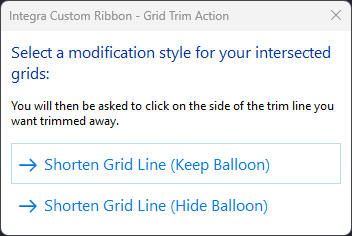
- Shorten Grid Line (Keep Balloon): the balloon moves to the new end.
- Shorten Grid Line (Hide Balloon): the balloon at that end is hidden.
-
Click on the side of the line you want trimmed away. Every grid crossing the line is cut back, or extended, to it.
The whole change is a single undo step.
The detail line is deleted
If you picked a detail line, it's deleted once the grids have been trimmed, as it's only a construction line. A line in a DWG is never touched.
Lengthening grids
A grid can be extended as well as shortened, as long as its full (3D) length reaches the line. If a grid has been shortened in the view and the line sits beyond its current end, it's extended out to the line.
Reset Changes to Gridlines
Removes the changes made by Lengthen & Shorten Gridlines, or any other 2D grid changes in the view. Grids go back to their full 3D length, with the balloon showing at both ends.
| Runs in | Revit 2024 |
| Ribbon | Integra Tools tab → Grid Tools panel → Reset Changes to Gridlines   |
| Works on | Selected grids, or every grid in the view |
Step by step
- Select the grids to reset, if you only want to reset some of them.
- On the Integra Tools tab, in the Grid Tools panel, click Reset Changes to Gridlines.
-
Choose which grids to reset:
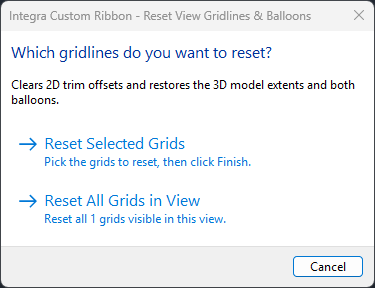
- Reset Selected Grids: the grids you selected in step 1. If you didn't select any, pick them now and click Finish.
- Reset All Grids in View: every grid visible in the view.
-
A message confirms how many grids were reset.
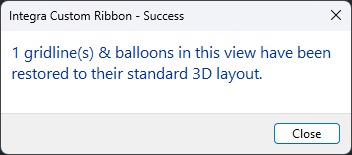
The whole change is a single undo step.
Warning
Resetting removes all 2D changes to those grids in the view, including any you made by hand by dragging grid ends.