Construction Issue
Takes sheets to their next construction stage in one go: it adds the revision, sets the title block status and the sheet's suitability code, and updates the tags and annotation on the sheet to suit. It works out the stage from each sheet's Document Suitability Code.
| Sheet's code | Goes to | Code becomes |
|---|---|---|
| S0 to S4 | Construction (C01) | S5 |
| S5 | Construction Record (CR) | CR |
| CR or anything else | Skipped | Unchanged |
At a glance
| Runs in | Revit 2024 |
| Ribbon | Integra Tools tab → Issue Tools panel → Construction Issue   |
| Works on | The open sheet, or the sheets selected in the Project Browser |
| Changes | Revisions, title block status, suitability code, tags and annotation on those sheets |
What each stage does
- Revision: adds the ISSUED FOR CONSTRUCTION revision, on the Construction numbering sequence.
- Status: sets the title block Status to CONSTRUCTION.
- Suitability code: sets it to S5.
- Levels on tags: adds the level to service tags and multi-service tags that don't already show one.
- Revision clouds: deletes the preliminary revision clouds on the sheet and in its views. Their revisions stay in the sheet's revision schedule.
- Revision: adds the CONSTRUCTION RECORD revision, on the Construction Record numbering sequence, and removes the sheet's earlier revisions.
- Status: sets the title block Status to CONSTRUCTION RECORD.
- Suitability code: sets it to CR.
- Levels on tags: removes the levels from service tags and multi-service tags. Level-only service tags that were split off a centre tag are deleted.
- Annotation: deletes dimensions, spot elevations, spot coordinates, spot slopes and revision clouds on the sheet and in its views.
- EXISTING and PROPOSED: lists any notes and Tag Suffix values that contain those words, so you can choose what to do with each (see below).
What counts as on the sheet
Annotation on the sheet itself, and in the views placed on it. Annotation in a dependent view belongs to its parent view, so for a cropped dependent view only items inside its crop count. Legends and schedules are left alone.
Step by step
- Open the sheet to issue, or select several sheets in the Project Browser.
- On the Integra Tools tab, in the Issue Tools panel, click Construction Issue.
-
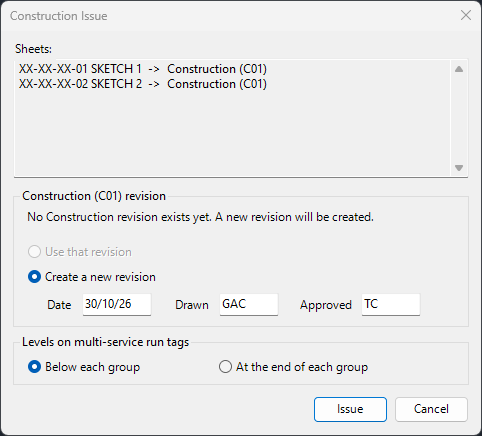
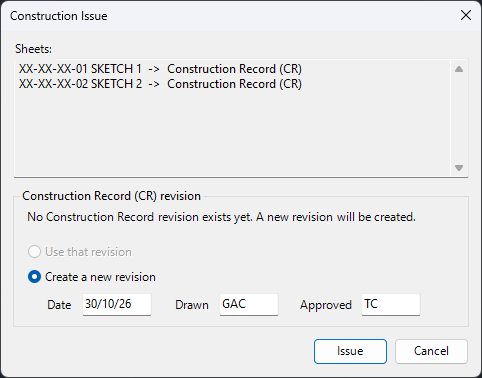
The Construction Issue window lists each sheet and the stage it's going to, or why it's being skipped. Fill in the sections it shows (see below).
-
Click Issue.
- For Construction Record, choose what to do with each EXISTING or PROPOSED note (see below).
-
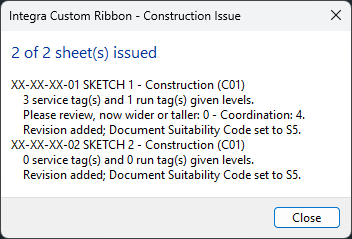
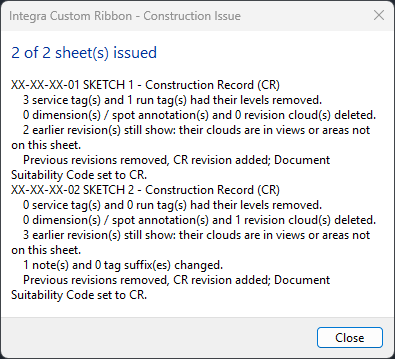
Read the report. It shows how many sheets were issued and what changed on each.
The whole run is a single undo step, so Ctrl+Z reverses everything.
The Construction Issue window
Only the sections that apply to the sheets you're issuing are shown.
Revision
There's a section for each stage being issued: Construction (C01) revision and Construction Record (CR) revision.
- If a suitable revision already exists (the newest in the project on that sequence, and not yet issued), you can Use that revision or Create a new revision. One already dated today is used without asking.
- Otherwise a new revision is created. Enter its Date, Drawn (Issued By) and Approved (Issued To). Your initials are remembered for next time, and dates are written DD/MM/YY.
All the sheets in one run share the same revision for each stage.
Levels on multi-service run tags
Shown when issuing to Construction. Choose where the levels go on multi-service tags: Below each group or At the end of each group. See Multi Service Tag Settings.
Tag copies in views not on these sheets
Tags showing the same text share it, so a tag on these sheets may have identical copies in views you're not issuing, such as a working plan. When that's the case, choose:
- Change them too (stay matched): the copies change in the same way, so they keep matching.
- Leave them as they are: only the tags on these sheets change, and the copies split off with their own text.
EXISTING and PROPOSED (Construction Record)
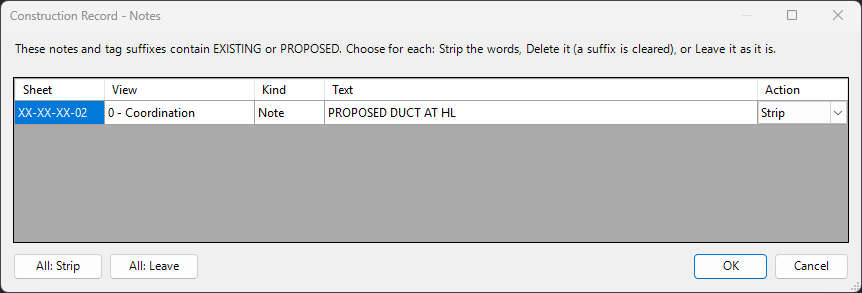
When issuing to Construction Record, the Construction Record - Notes window lists every note and Tag Suffix on the sheets that contains EXISTING or PROPOSED, with its sheet, view and kind. For each one, choose an Action:
| Choice | Result |
|---|---|
| Strip (default) | Removes the words EXISTING or PROPOSED and keeps the rest. |
| Delete | Deletes the note. For a Tag Suffix, the suffix is cleared. |
| Leave | Leaves it as it is. |
Use All: Strip or All: Leave to set every row at once.
Tag Suffix is on the part
A Tag Suffix belongs to the duct, pipe or tray, not the tag. Changing it changes every tag on that part, in every view.
Why a sheet might be skipped
| Reason | What to do |
|---|---|
| It has no Document Suitability Code parameter | Check the sheet uses the Integra title block and project parameters. |
| Its Document Suitability Code is "…" (expected S0 to S5) | Correct the code on the sheet. |
| Already Construction Record | Nothing more to do. |
| The sheet is owned by another user | Ask them to sync and relinquish. |
| Its latest revision is already a Construction / Construction Record revision | The sheet has already been issued at that stage. |
Reading the report
For each sheet, the report lists what was done. Lines worth checking:
- Please review, now wider or taller: tags that grew when their level was added, by view. They may now overlap other annotation.
- … earlier revision(s) still show: on a Construction Record sheet, some earlier revisions remain because their clouds are in views or areas not on this sheet.
- No title block found or no "…" Status type in the title block: the status couldn't be set. Check the title block.
- … tag(s) are blank: their part or services already show the maximum number of differently worded tags. See Service Tags or Multi Service Tags.
- … tag(s) owned by another user were not changed.
- … service tag(s) aren't set up yet: run Refresh Service Tags, then issue again.