Multi Service Tag Settings
Choose how selected multi-service tags are laid out: column or line, how levels are shown, the support type, the width and the order.
At a glance
| Runs in | Revit 2024 |
| Ribbon | Integra Tools tab → Tagging Tools panel → Multi Service Tag Settings   |
| Also on | The Modify tab, whenever a multi-service tag is selected |
| Works on | Selected multi-service tags |
Step by step
- Select the multi-service tags to change.
- Click Multi Service Tag Settings, on the Modify tab or the Integra Tools tab. If nothing was selected, select the tags now and click Finish on the Options Bar.
-
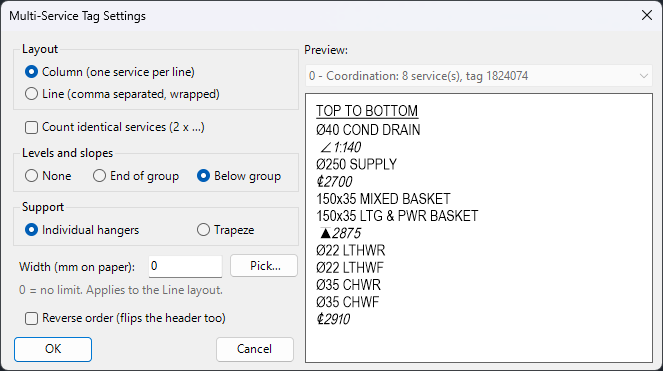
Make your changes. The Preview shows the result as you go. With several tags selected, choose which one to preview from the list above it.
-
Click OK.
Whatever you apply also becomes the starting point for the next tag you place.
Mixed selections
A setting you don't touch is left as it is on each tag. Only the settings you change are applied to every selected tag.
The settings
Layout
| Option | Result |
|---|---|
| Column (one service per line) | Each service on its own line. |
| Line (comma separated, wrapped) | Services listed one after another, separated by commas, wrapping onto a new line at the width you set. |
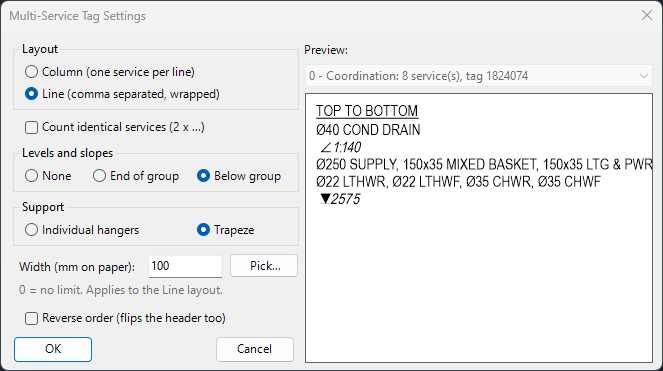
Line layout at 100 mm wide, with trapeze support. Compare this with the Column layout above.
Count identical services (2 x ...) lists identical services once with a count, for example 2 x 28 CWS, instead of repeating them.
Levels and slopes
| Option | Result |
|---|---|
| Below group | The level (or slope) goes on its own line under each group of services that share it. |
| End of group | The level goes at the end of the group's last line, or on the next line if it won't fit. |
| None | No levels or slopes. |
Support
Individual hangers or Trapeze. This changes how levels are worked out and grouped. See Individual hangers or trapeze.
Width
Width (mm on paper) sets the longest a line can be before it wraps. 0 means no limit. The width only applies to the Line layout.
Click Pick... to measure the width on screen instead, by clicking the two ends of the space available.
Reverse order
Reverse order (flips the header too) lists the services the other way across the run, for example Right to Left instead of Left to Right. The header changes to match.
The preview
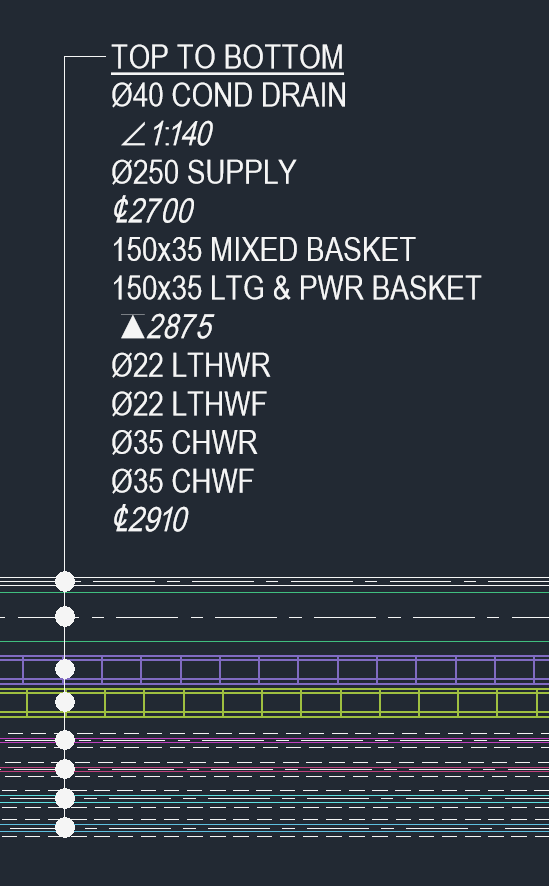
What you see is what you get. The tag in the drawing matches the preview line for line:
Good to know
- Tags owned by another user are skipped, and the number skipped is reported.
- "Tag … is now blank": its services already show three differently worded multi-service tags. The message lists the tags involved. Delete tags you don't need, or give them matching settings so they can share.